
Sell more products
Setup your onsite campaign by clicking on Onsite Campaigns –> Create new Onsite Campaign.
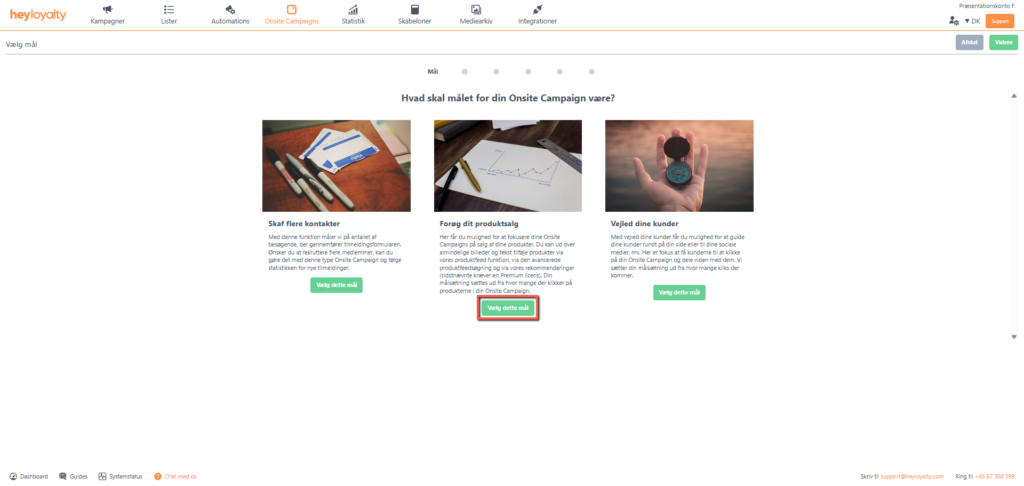
There are several different types of onsite campaigns. In this guide, the focus is solely on Increase your product sales, why you should choose this goal and subsequently the obvious choice is pop up; Select this type.
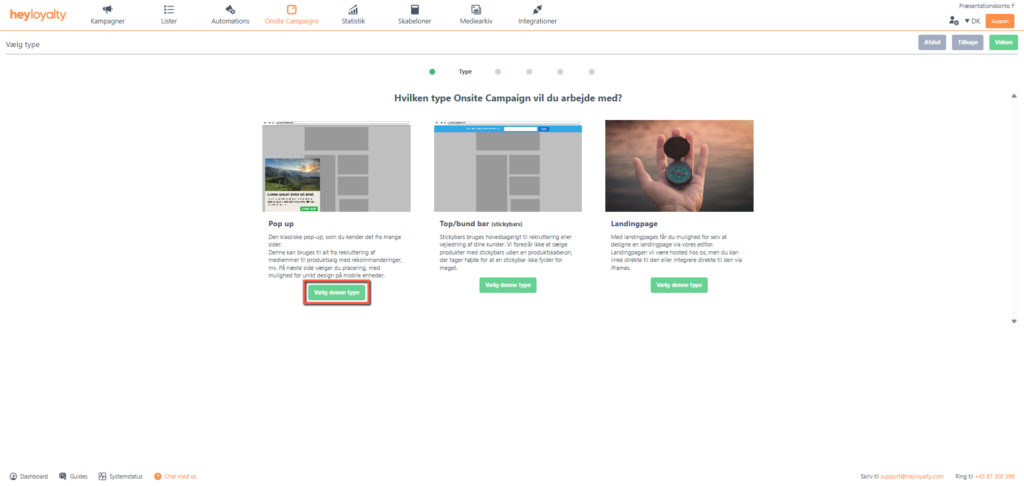
Choose from the various triggers and constraints that control who, when, and why a guest should see this onsite campaign.
Design your onsite campaign
Design your onsite campaign according to your business needs.
If you have a product feed in your account, you can use the product feed to pull products into your onsite campaign – just like you know it from your email campaigns and automations.
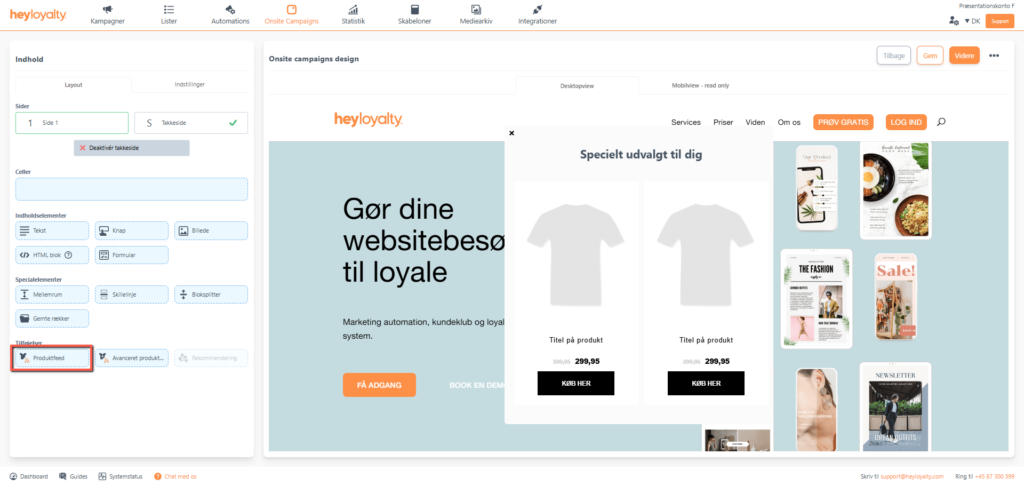
When you are happy with the design, click Continue, where you can see a preview of your onsite campaign on your site and a summary of your settings for that onsite campaign.
If everything is as it should be, you can just click Activate and your onsite campaign will be live and will be displayed based on the triggers and constraints you selected earlier in the setup.
Alternatively, click Cancel and later you manually activate your onsite campaign.
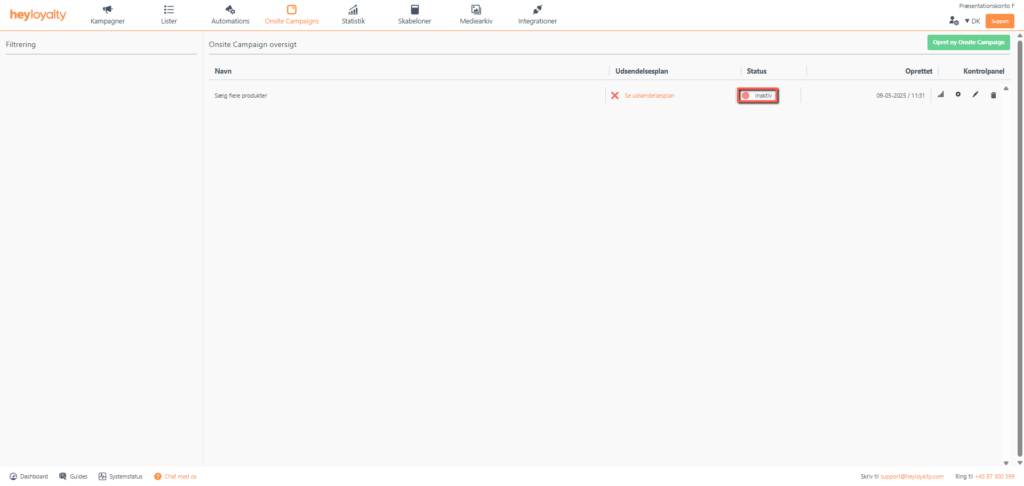
You can activate your onsite campaign by tapping Inactive in the Status column of your Onsite Campaign overview. Type Activate in the box and click Activate

Hvis du mangler information eller hjælp, som du ikke finder her på guide sitet, er du altid velkommen til at kontakte vores support!
support@heyloyalty.com / tlf. 87 300 399


Leave a Reply