
Sender profile

Contents

    In this guide you will get a step-by-step guide on how to set up your sender profile. It is important that you set up a sender profile, as it is mandatory in Heyloyalty in order for you to send emails. The sender profile is used as sender information when you send emails or SMS.

    At the end of the guide, we will explain how to validate your sender profile so you can send to more than 10 recipients.

    Sender profile: Why should it be used? 

    Sender profile is a mandatory part of setting up your account in Heyloyalty.  
    A sender profile is your sender information that your recipients’ email clients use to verify that the email is real and does not contain phishing or spam.  

    In addition to a name and an email address as the sender SPF and DKIM must be set up and rules must be set for DMARC.  It may almost sound dangerous, but it is relatively simple to set up. To put it simply,  SPF (Sender Policy Framework) is a setup that tells email clients that your email system (in this case, Heyloyalty) is allowed to send emails on behalf of you (and your domain). DKIM (Domain Keys Identified Mail) can be explained as being a digital signature that is included in all the emails you send via Heyloyalty.  

    DMARC (Domain-based Message Authentication, Reporting and Conformance) is an email authentication protocol. In short, it’s a necessity to set up, as major email clients like Google and Yahoo have chosen to make DMARC mandatory if your emails aren’t to be automatically discarded and perceived as spam.   

    The more technical explanation of DMARC is, that it is designed to give email domain owners the ability to protect their domain from unauthorized use, commonly known as email spoofing. The purpose and primary outcome of implementing DMARC is to protect a domain from being used in business email compromise attacks, phishing email and email scams.   

    In Heyloyalty, we do not have access to the systems where SPF, DKIM and DMARC must be set up. Your hosting provider will be the one who can help you, if you don’t know how to verify the sender profile yourself.  

    Setup of Sender profile

    Create your sender profile by clicking Settings –> Sender profiles
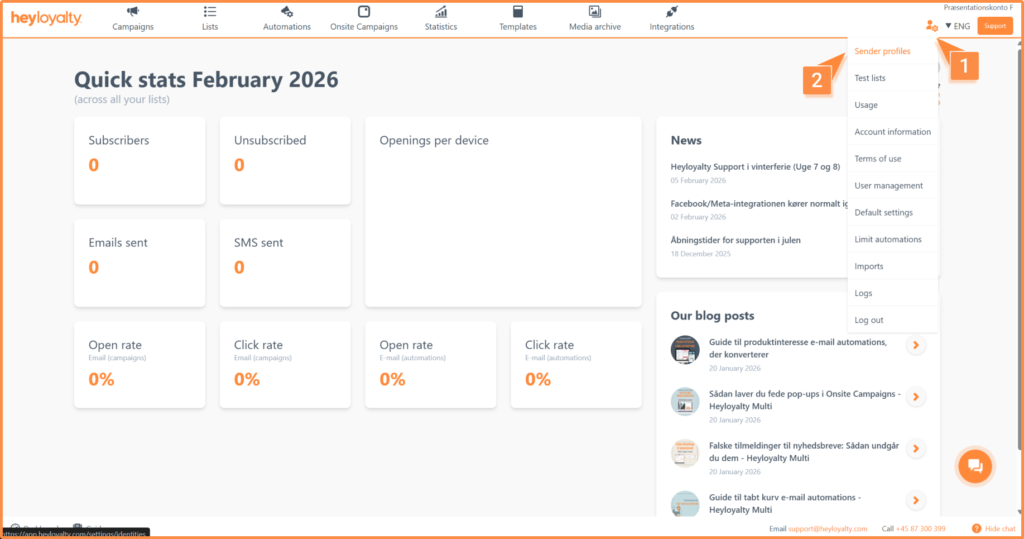

    –< 0 > Create new sender.

    Fill in the information.

    • We recommend that you make the sender name a little personal.

    Tip: Review your own inbox to see, how other companies have named their sender profile.

    • Regarding Type, it is important to be aware that you must create two different sender profiles for emails and SMS, respectively.

    Tip: You can create multiple sender profiles for both SMS and email. 

    • Email is the email address your recipients will be able to see as being the email address that sent the email. Here, too, it can be a good idea to create a personal email address. To avoid one of your employees’ inbox being flooded with inquiries, auto-replies, etc., consider creating a new inbox that can contain, store and receive all of this.

    Tip: You might consider inventing a new person who can act as the sender in Sender name and then create an inbox and email address that matches it. For example, create the email address  john@companyname.com if your sender profile is John from Your Company. The person or persons responsible for your newsletter can then access the inbox john@companyname.com to ensure that your recipients receive answers to any inquiries that may arise from your newsletter. 

    • Reply to is the email address that by default receives the reply if a recipient presses ‘Reply’ on one of your newsletters. In principle, this email address can be different from the sender, although we recommend that it is the same email address.

    Finish by clicking Save sender.

    You can now get hold of both the SPF and DKIM information. If you have an IT manager in the company, you can send an auto-generated email to the person by clicking on ⁝ –> Send DNS.

    Fill in the name and email address of the IT manager, who will receive the email below with exactly the information the person needs to be able to verify your sender profile.

    Send the auto-generated email by clicking Send email.

    Once SPF and DKIM have been set up, you can check if the setup has gone through and/or done correctly by clicking on ⁝ –> Check DNS.

    There will now be either a red or green bar at the top, telling you if the setup has been done correctly:

    If it says DKIM and SPF is set up correctly, you are now ready to use the sender profile and can send both campaigns and automations in Heyloyalty.



    Hvis du mangler information eller hjælp, som du ikke finder her på guide sitet, er du altid velkommen til at kontakte vores support!
    support@heyloyalty.com / tlf. 87 300 399

    Updated on 26. February 2026
    Was this article helpful?

    Leave a Reply

    Your email address will not be published. Required fields are marked *