
How to Map a JSON Feed
Start by finding the URL for your product feed. You will most likely find this in the backend of your webshop. Heyloyalty can’t give you the exact path, as there are many factors that affect where you find your product feed’s URL.
Når du har fundet URL’en til produktfeedet er du klar til at mappe det i Heyloyalty.
Start by clicking on Integrations –> Integrations –> Product feed –> Setup integration –> Create new product feed.
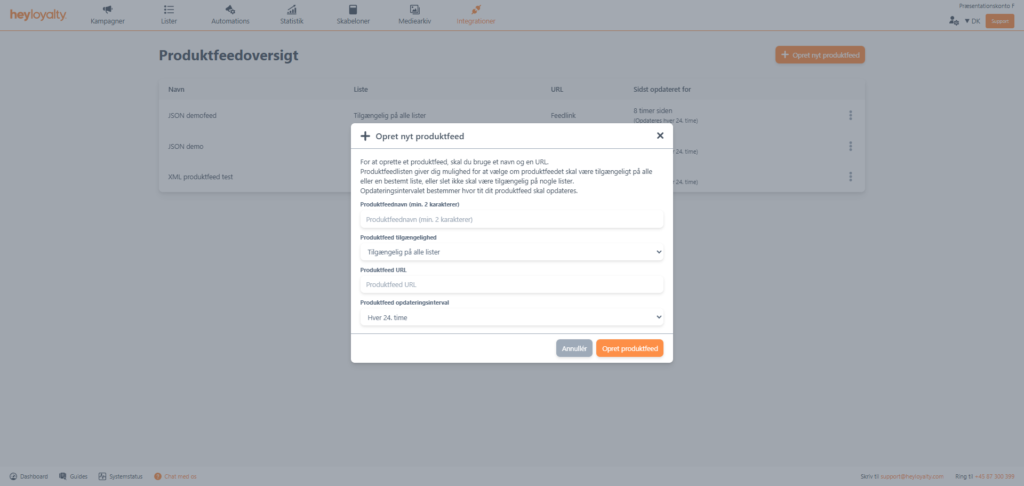
Fill in the Product feed name. It is possible to have several different product feeds, so make sure that the naming makes sense for you and those who will use the Heyloyalty account in the future.
Depending on your setup, it might make sense to limit the availability of the feed to a specific list (for example, if you have a product feed that only contains customer club prices, it might make sense to limit that feed to only be used with the customer club list). However, by default, it’s fine to make the product feed Available on all lists.
Paste the link you previously copied into the product feed URL.
The update interval is generally every 24 hours. In most cases, this is enough, because you can at any time go in and force an update manually, if you have changed something a few minutes before you are due to send a campaign.
You now need to map your product feed.
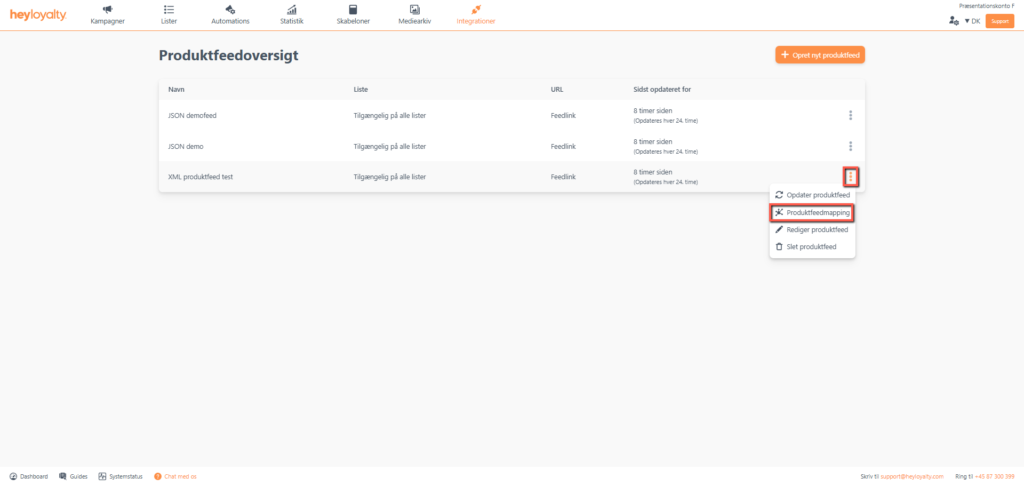
Next to the Just Create Product Feed, click ⁝ –> Product Feed Mapping.
Fill in the Feed type and Field name based on how your product feed is structured. Field name should often be left empty when using a JSON feed.
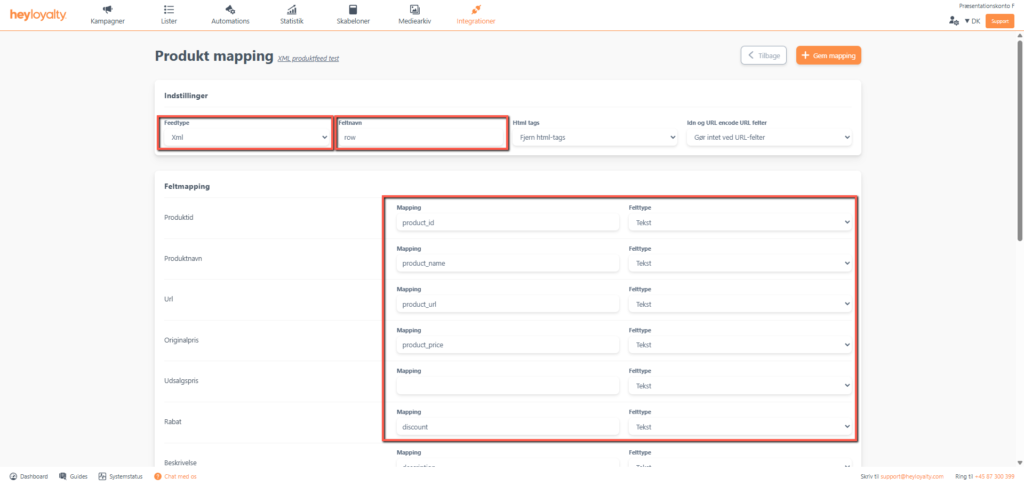
To be able to fill in all the fields in Field mapping, you need to open your product feed.
Open your product feed in a new tab by pasting the URL of your product feed into this tab and press Enter. Depending on how many products you have in your product feed, it may take a short while for your browser to load the entire feed. A properly loaded product feed in the format JSON can look like this:
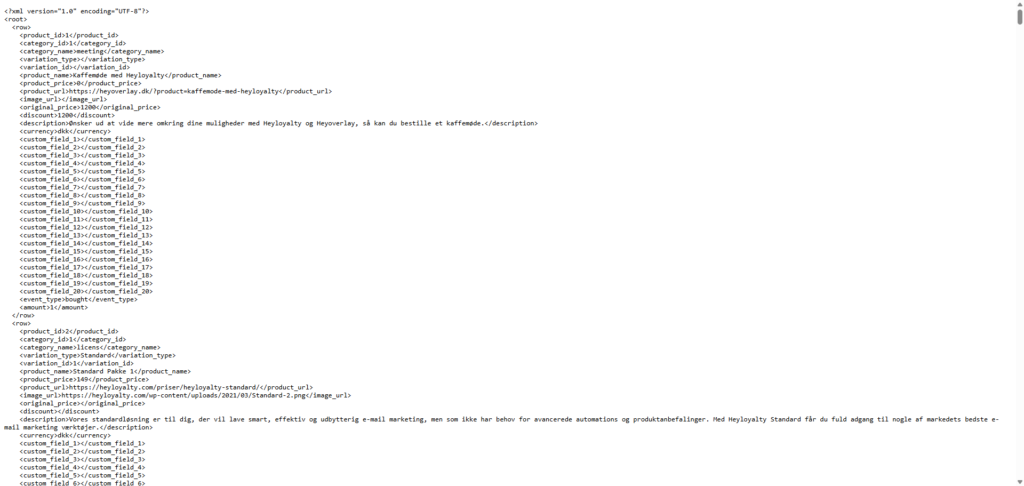
Now you need to map the fields from your product feed with the fields in the Field mapping list in Heyloyalty. Your product feed probably has a nice structure, which is why it should be a manageable task to map the fields based on the naming in both the product feed and on the Field Mapping list in Heyloyalty.
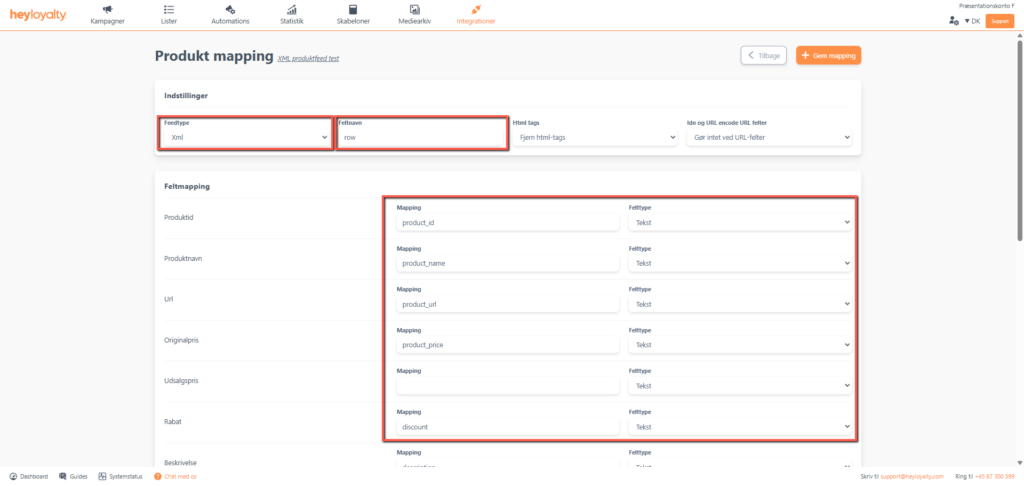
In the Field mapping list in Heyloyalty, the first field is the Product ID. Find the corresponding field in your product feed, which in this case is product_id.
Product name is in the product_name field.
You run through this mapping for all the fields in your product feed that are relevant.
Fields such as price, sale price, category name, brand, stock status, etc. make good sense to map. Once you have mapped the fields you want to map, press Save Mapping and then Back.
Update your product feed (JSON)
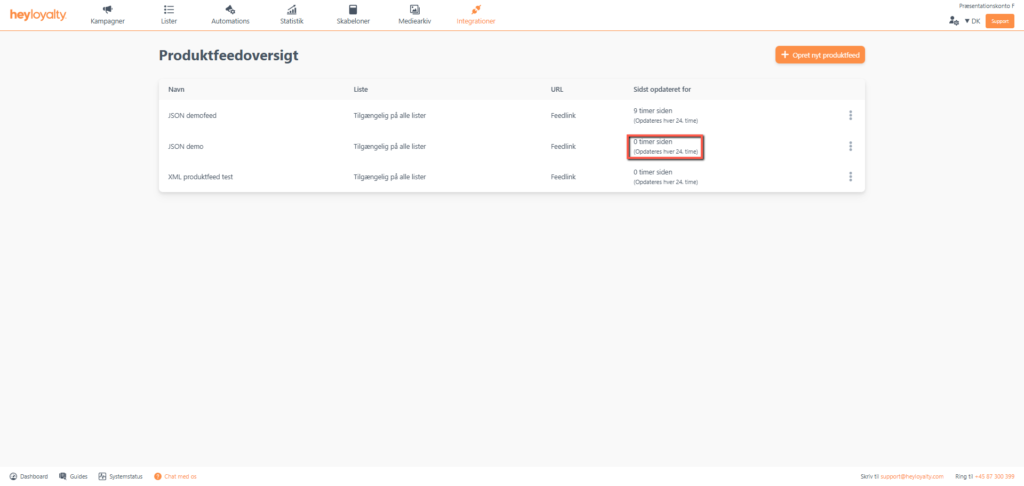
You can easily see if your mapping of the product feed is correct by trying to make a manual update of the product feed. Click ⁝ –> Update product feed. Wait 30 seconds and reload the web page (press Ctrl + R or Cmd + R). If the product feed is mapped correctly, the column Last updated for now will say 0 hours ago:

Hvis du mangler information eller hjælp, som du ikke finder her på guide sitet, er du altid velkommen til at kontakte vores support!
support@heyloyalty.com / tlf. 87 300 399


Leave a Reply