
Create a segment in a list
Click Lists –> Click your list –> Segmentation –> Create new segment
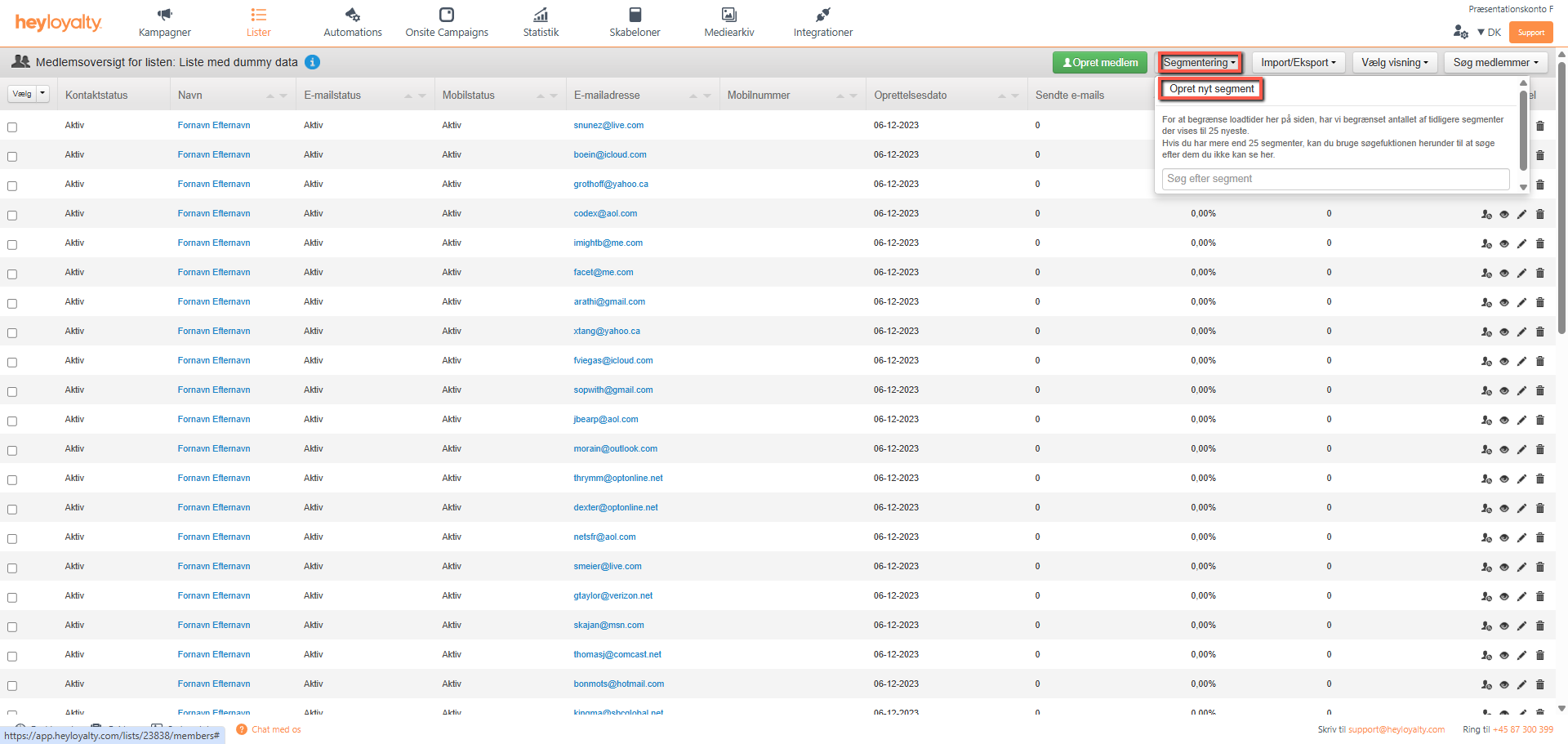
From here, you can segment on the fields available in your list.
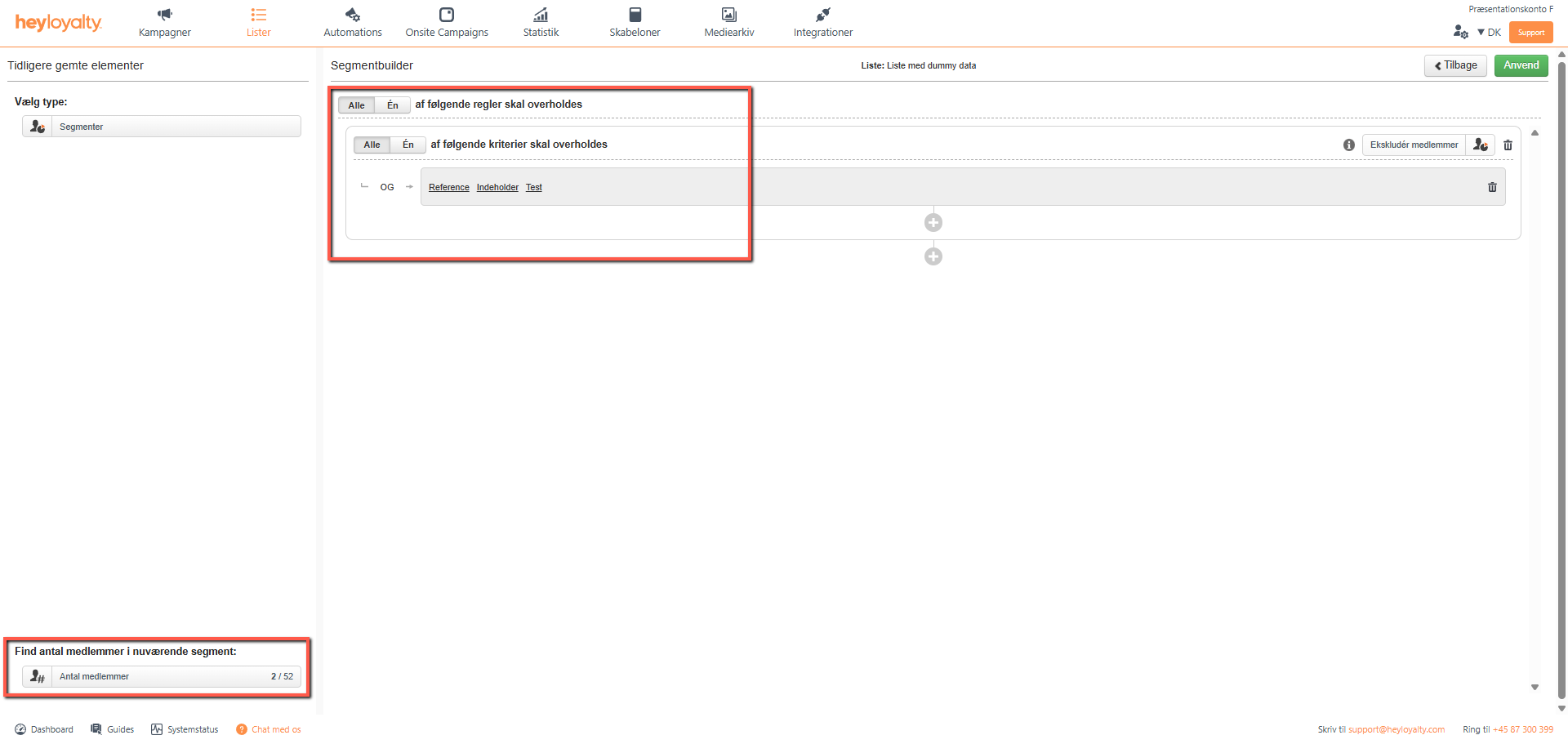
Start by clicking New rule –> New criterion –> Choose field to segment on.
After you have clicked New Rule –> New Criterion –> Select Field, the following Choose operator field will change segmentation options depending on the type of field you selected earlier. For date fields, you can select fixed and relative dates (e.g. is before, is exactly, is later than, is for at least, is in less than). Similarly, on fields of type text, you can select an operator as similar to, not similar to, contains, or does not contain.
After you have selected your field, your operator and filled in the text, you can click on the bar under Find number of members in current segment. It will now be examined how many contacts on the list are part of the current segment you are building.
Click Apply and then Save and give your segment a name so you can easily remember what the segment does. Choose name and click Save again.
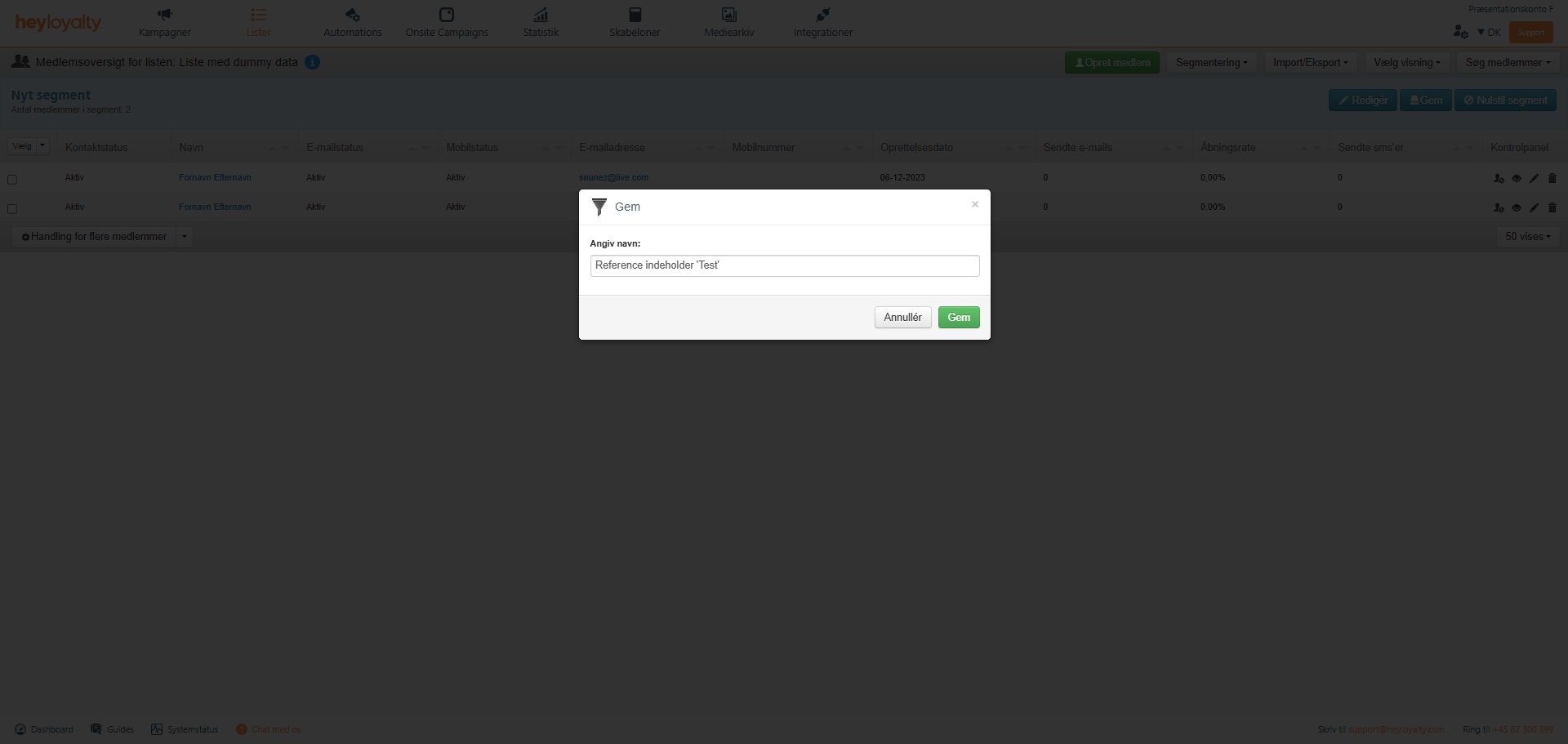
Your segment is now saved and can be used in your campaigns and automations.
Segmentation with tracking data
Click Lists –> Click your list –> Segmentation –> Create new segment.
From here, you can segment on the fields available in your list.
Start by clicking New rule –> New criterion –> Choose field –> Tracking.
From here, you’ll need to choose what you want to segment on, and the options are only limited by how much data you send to Heyloyalty. You can choose to segment on e.g. Has/have bought for, has/have bought (number of times), Has/have bought (number of products), Number of abandoned carts, Average cart size. etc.
You can also segment on actions such as Has/have seen, Has/have not seen, Has/have had in cart, Has/have not had in cart, Has/have bought, or Have not bought.
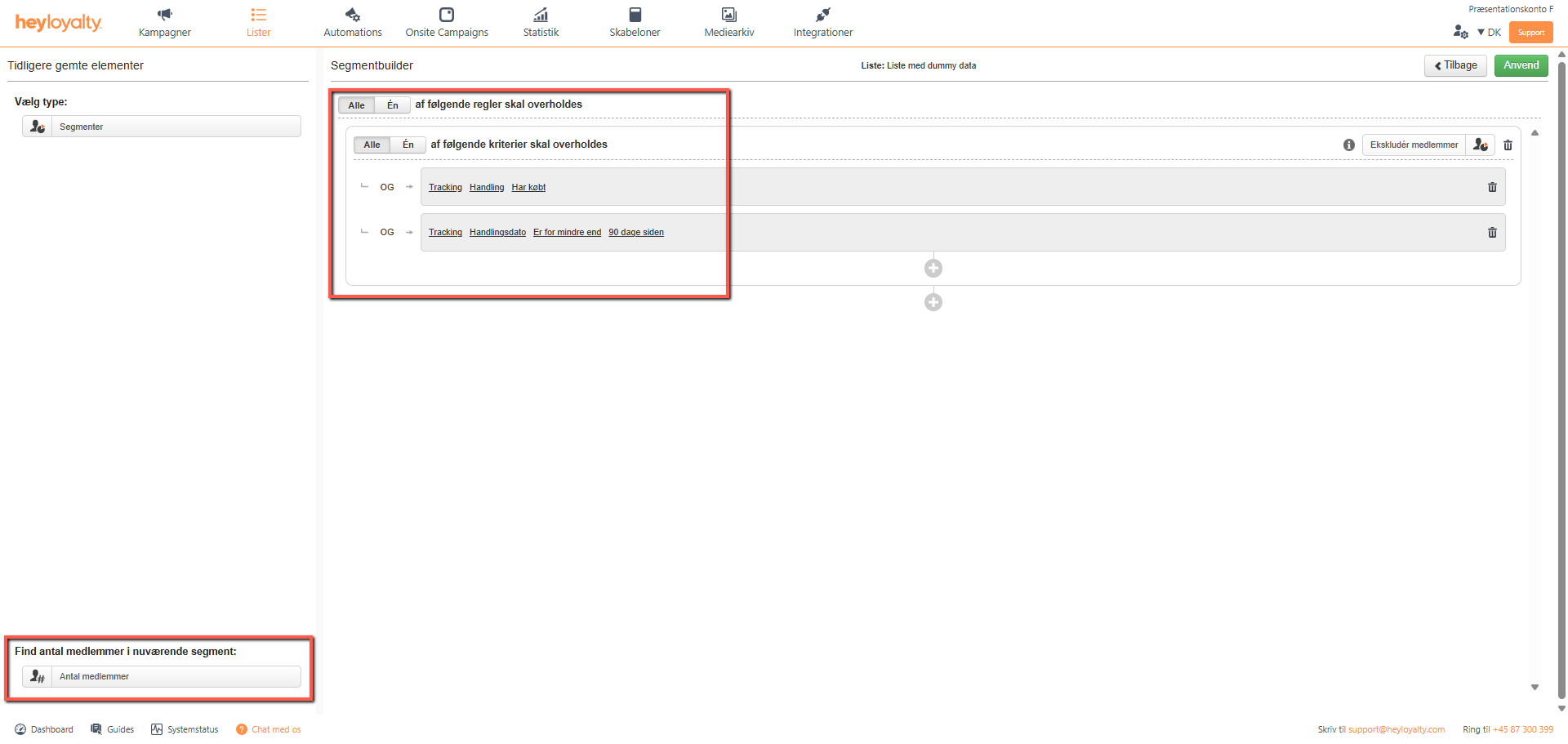
For example, if you make a segment that Tracking –> Action –> Has/have bought, you will find everyone on the list who has ever bought. If you would like to limit the period during which the purchase has been made, add a criterion consisting of Tracking –> Action Date –> is for less than –> 90 days ago. The 90 days is of course just an example and here you can choose the time interval you find suitable.
If you want to create the above segment and find everyone who has purchased within the last 90 days, then you build the segment like this:
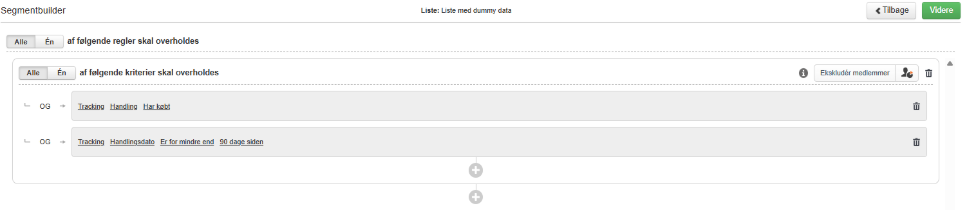
After you have selected your field, your operator and filled in the text, you can click on the bar under Find number of members in current segment. It will now be examined how many contacts on the list are part of the current segment you are building.
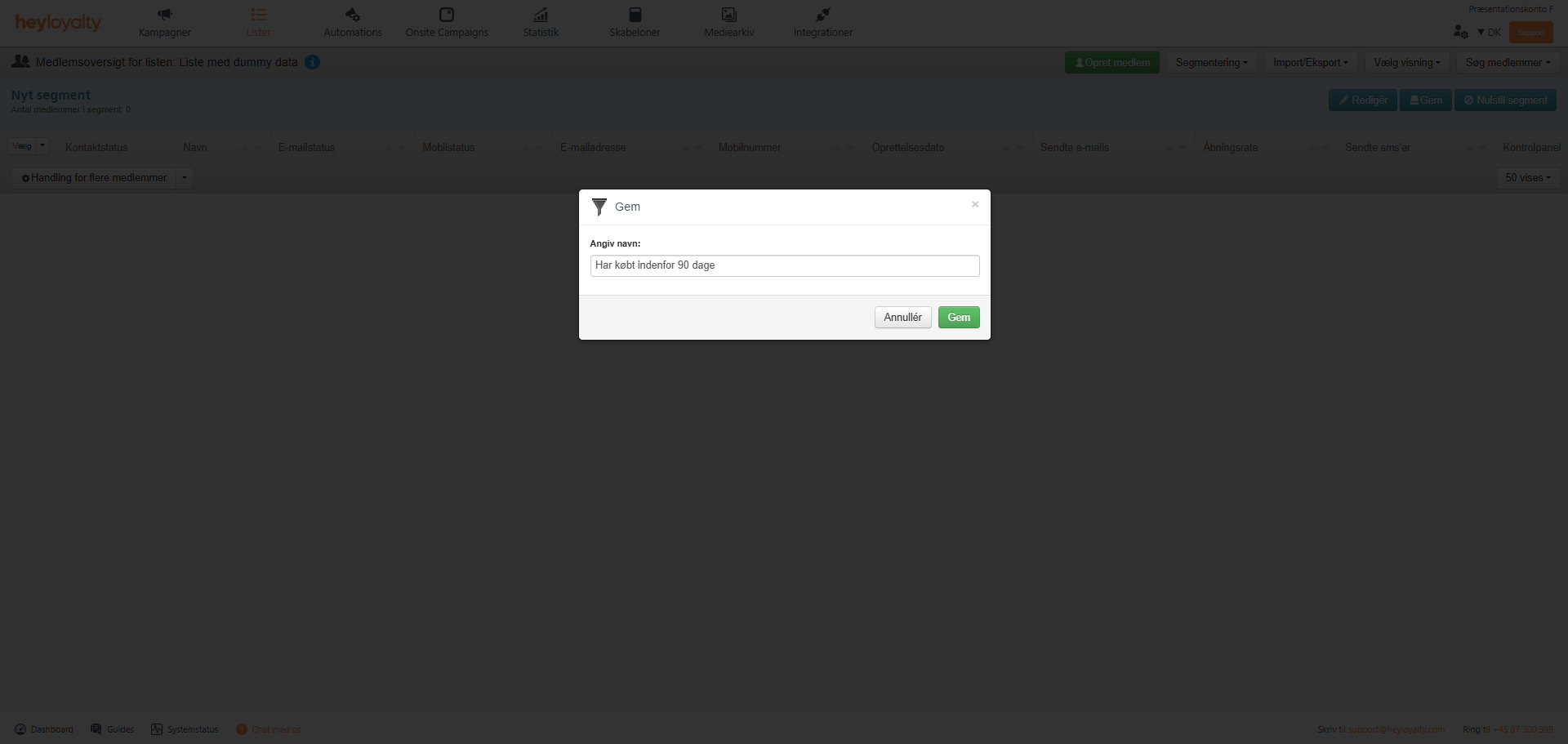
Click Apply and then Save and give your segment a name so you can easily remember what the segment does. Choose name and click Save again.
Use a segment in a campaign
Click Campaigns –> Create new campaign –> Select segment –> Select the segment that you want to use.
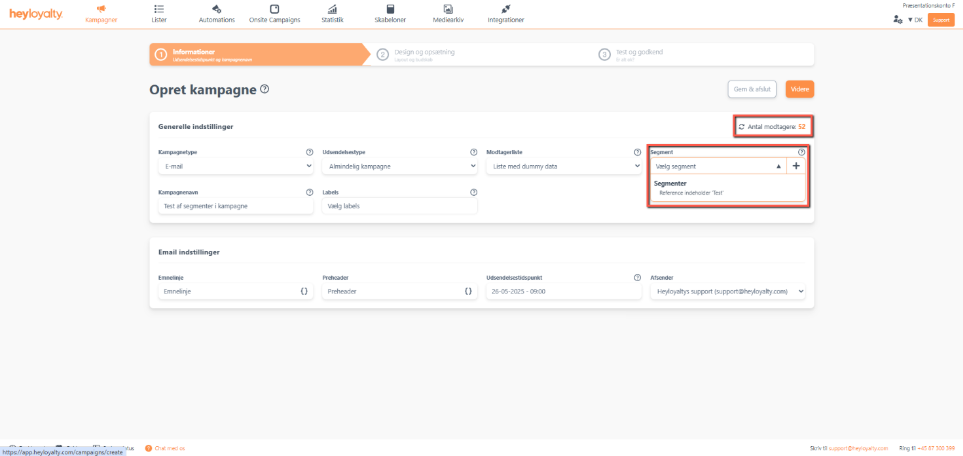
Once you have selected the segment, you will also see that the Number of recipients will change from being all active members on the list to now being a smaller number, because the campaign is now only sent to the recipients who are in the segment.

Hvis du mangler information eller hjælp, som du ikke finder her på guide sitet, er du altid velkommen til at kontakte vores support!
support@heyloyalty.com / tlf. 87 300 399


Leave a Reply