
Setup of Dobbelt opt-in
Check if a list has double opt-in. Click Lists –> ⁝ –> Edit list.

Now find the Double opt-in field in the list and see if it says Enable double opt-in or Don’t use double opt-in.
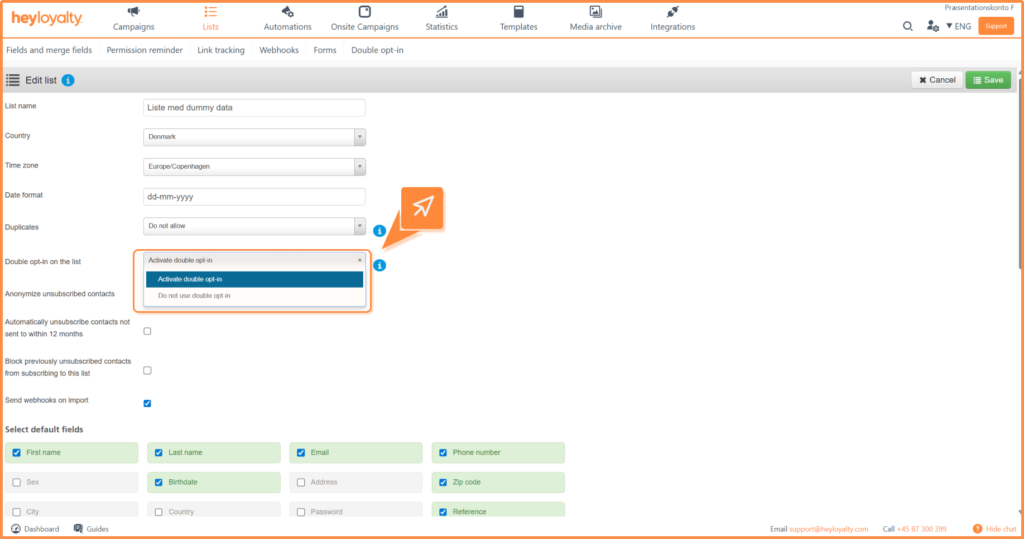
If the list is set to Activate double opt-in, then you need to set up your double opt-in email.
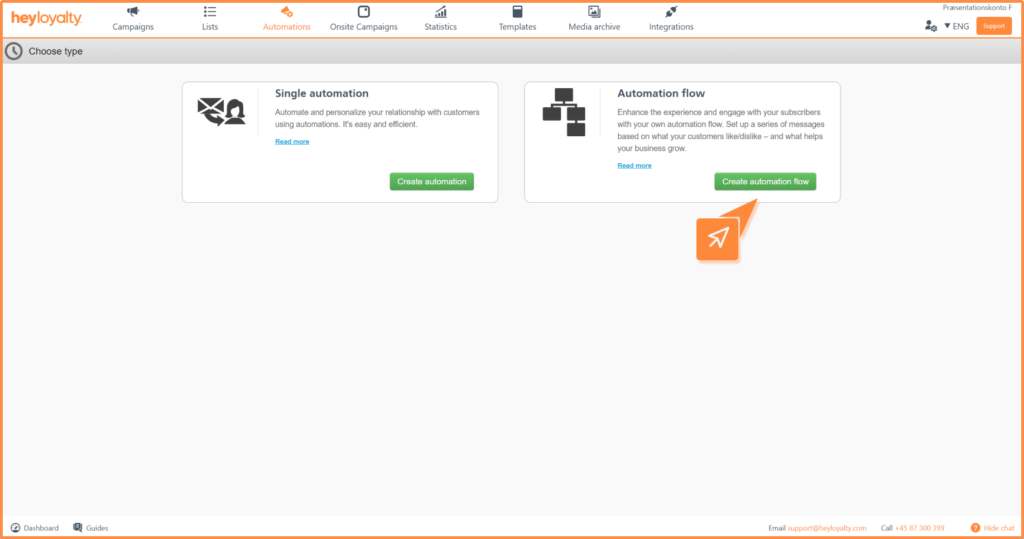
Set up your double opt-in by clicking on Automations –> Create new automation –> Create automation flow.

Name your flow and select list.
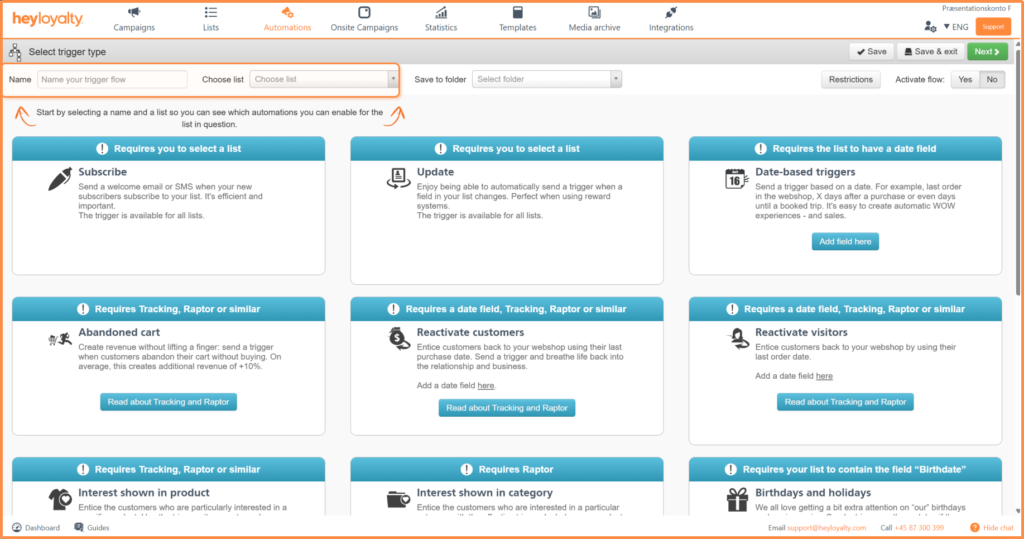
Then select Set trigger at Subscribe.

Change the Select subscription type to Double opt-in.
You will now see an empty flow. Start by building your flow by clicking on + and inserting the desired element, which in this case is Email.

Fill in the information and click Create.

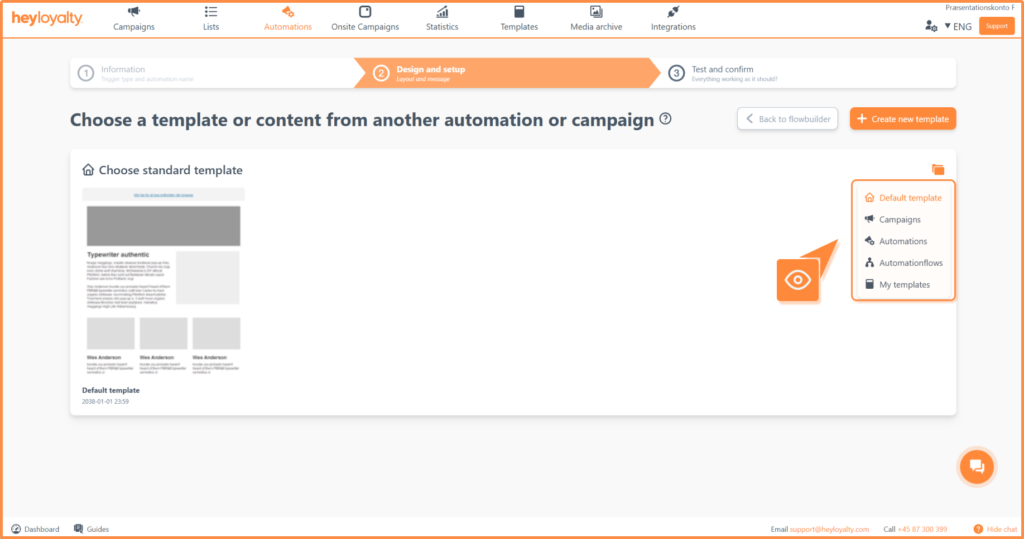
Choose the desired email template and design your email.
To insert the double opt-in link, you need to paste it into a block of text. Click { } –> Member –> Double opt-in.
You will now be able to see a merge field in your email.

The link on the button must always be {member.doubleOptin} and then Heyloyalty itself creates the correct, personalized link for the individual recipient.

Click Continue –> Continue to flowbuilder –> Save & Exit.

After you’ve designed your email and saved your flow, you can activate the flow by clicking Inactive in the Status column of your automation dashboard.

Type Activate in the box and click Activate


Hvis du mangler information eller hjælp, som du ikke finder her på guide sitet, er du altid velkommen til at kontakte vores support!
support@heyloyalty.com / tlf. 87 300 399


Leave a Reply